An approval workflow in Zoho Creator routes a submitted record to one or more approvers in order, and runs actions when each one approves or rejects it. You set who approves (a user, a role, or a person picked on the record), how many levels there are, and what happens at each step: emails, record updates, integrations, or your own Deluge. It's available on every Creator plan.
This guide builds a real one, a purchase request with a manager and a finance step, and then shows a lighter pattern we use for simple yes-or-no approvals. If you want it built for you, that's part of our Zoho Creator work.
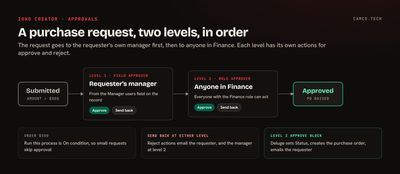
How approvals work in Zoho Creator
Zoho's approval workflow overview describes the model in a few rules:
- A form can have one or several levels of approval.
- Each level can have one or more approvers.
- Records move through the levels in order.
- Actions can run when a record is submitted, when it's approved, and when it's rejected.
Approvers come in three types:
| Approver type | Who approves | Good for |
|---|---|---|
| User | One named user | A single owner, such as the CFO |
| Role | Everyone in a role | A team queue, such as Finance |
| Field | The person selected in a Users field on the record | Routing to each requester's own manager |
The Field type is the one that makes approvals scale. Instead of building a separate workflow per department, you put a Manager field on the form, fill it automatically or let the requester pick, and every request goes to the right person.
The actions you can attach at each step are:
| Action type | Options |
|---|---|
| Notification | Send email, send SMS, send notification |
| Data access | Add, update, or delete a record |
| Integration | Zoho CRM, Salesforce, QuickBooks, Zoho Recruit |
| Deluge script | Anything you can write |
Build it: a purchase request with two levels
Here's the setup for a purchase request form with these fields: Item, Vendor, Amount, Requested_By, Manager (a Users field), and Status.
- Create the workflow. In edit mode, go to Workflows, then Approvals, and click Create Workflow. Zoho's setup guide also lets you start from the Add icon and choose On an approval activity.
- Pick the form and when it runs. Choose the Purchase Request form. Set Run this process to On condition, with Amount greater than 500. Requests under that amount skip approval entirely, and a regular form workflow can mark them approved.
- Level 1: the manager. Add an approver, choose the Field type, and select the Manager field. Rename the buttons if you like. Zoho lets you set your own approval and denial labels, such as "Approve purchase" and "Send back."
- Level 2: Finance. Add a second approver with the Role type and choose your Finance role. Anyone in Finance can take it.
- Add actions to each level. On submission, email the manager. On level 1 rejection, email the requester. On level 2 approval, run the Deluge below. On level 2 rejection, email the requester and the manager.
- Decide on recall. In the workflow properties, Allow submitters to recall requests is off by default. Turn it on if people should be able to pull back a request and fix it.
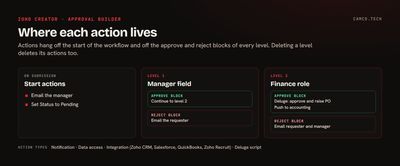
Deluge in the approve and reject blocks
Zoho's Deluge approval action guide shows where it goes: open the approver's level, add an action to the Approve or Reject block, and choose Deluge script.
This one runs when Finance approves. It marks the request approved, creates the purchase order record, and tells the requester:
//
// LEVEL 2 APPROVED: MARK THE REQUEST APPROVED AND RAISE THE PURCHASE ORDER
//
requestRec = Purchase_Request[ID = input.ID];
requestRec.Status="Approved";
// CREATE THE PURCHASE ORDER FROM THE REQUEST
poId = insert into Purchase_Orders
[
	Added_User=zoho.loginuser
	Purchase_Request=input.ID
	Vendor=input.Vendor
	Item=input.Item
	Amount=input.Amount
	PO_Status="Open"
];
// LET THE REQUESTER KNOW, WITH THE PO NUMBER
requesterEmail = Employees[ID = input.Requested_By].Email;
sendmail
[
	from :zoho.loginuserid
	to :requesterEmail
	subject :"Purchase approved: " + input.Item
	message :"Your request for " + input.Item + " was approved. Purchase order " + poId + " is open."
]
Two habits keep approval scripts easy to live with:
- Keep the record's own Status field in step. Approval history lives in the approval workflow, but reports, filters, and dashboards read fields. Writing "Approved" or "Rejected" to a Status field means every report can see it without joining anything.
- Put the heavy work in a function. If approval also has to post to accounting or another system, call a function from the action, such as
thisapp.purchasing.raisePO(input.ID). The approval block stays short, and you can test the function on its own.
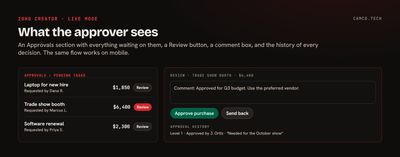
What approvers see in live mode
Approvers don't need to hunt through reports. Zoho's live mode guide covers the experience:
- An Approvals section in the app menu with Pending Tasks, which lists everything waiting for that approver.
- A Review button on each record, with a comment box before they approve or reject.
- Approval history in the record's detail view, showing each decision and comment.
- Completed Tasks, color-coded green for approved, red for rejected, and grey for recalled.
- The same flow on the Creator mobile app, plus alerts in the Notifications pane.
That last point matters more than it sounds. A manager approving a purchase from their phone in thirty seconds is the difference between a process people use and one they route around.
The lighter option: custom actions on a report
Not every approval needs levels and history. For a simple yes-or-no, like a time-off request one manager signs off on, we often skip the approval workflow and use custom actions on a report instead.
The pattern, from an internal operations app we built:
- Give the form a Status picklist with Pending Approval, Approved, and Denied, defaulting to Pending Approval.
- Write two functions, one per decision.
- Add two custom actions to the manager's report, Approve and Deny, each calling its function with the record ID.
//
// CUSTOM ACTION ON THE TIME OFF REPORT: APPROVE
//
void timeOff.markApproved(int recId)
{
	requestRec = Time_Off_Request[ID = input.recId];
	requestRec.Status="Approved";
	requesterEmail = Employees[ID = requestRec.Employee].Email;
	sendmail
	[
		from :zoho.loginuserid
		to :requesterEmail
		subject :"Time off approved: " + requestRec.Start_Date + " to " + requestRec.End_Date
		message :"Your time off request was approved."
	]
}
The Deny action is the same function with "Denied" and a different message. Group the report by Status and the manager sees everything pending at the top, with one click to decide.
| Use | Approval workflow | Report custom actions |
|---|---|---|
| Levels | One or many, in order | One decision |
| Approver routing | User, role, or Users field | Whoever can see the report |
| History and comments | Built in | Only what you log yourself |
| Recall and resubmit | Built in, if enabled | Edit the record |
| Setup time | A little longer | Minutes |
Use the approval workflow when there's money, compliance, or more than one approver involved. Use custom actions when it's one person saying yes or no.
Things to plan for
- Published forms. Approval workflows apply to records submitted by app users, not to forms published to the public. If outside people submit requests, have a form workflow create the internal record that goes for approval.
- Deleting a level deletes its actions. Removing an approver removes that whole level, including its approve and reject actions. Copy any Deluge out first.
- Disable instead of delete while testing. Disabling a workflow pauses it without losing the setup.
- Integrations on approval. If approved records should land in Zoho CRM or QuickBooks, the built-in integration actions can push them without code.
What we usually set up
- A Users field for the approver, filled automatically from the requester's employee record.
- A Run this process condition so small requests skip approval.
- A Status field that the approval actions keep in step, for reporting.
- Short approval scripts that call named functions for anything heavy.
- Renamed approve and deny labels that say what happens next.
- A pending approvals view on the home page for managers.
Getting approvals out of email
If a request in your business moves by forwarding an email until someone replies "OK," it's a good candidate for a Creator approval. Start with one form and one level, then add levels once the first one is running smoothly.
We build these as part of our Zoho Creator and process automation work. For more Deluge patterns from real Creator builds, see our Deluge tips and tricks.