A Zoho Books custom function is a Deluge script that runs when a workflow rule fires or someone clicks a custom button. It can read the record, call the Books API, update Zoho CRM, or talk to any outside system. The five examples below come from functions we've built for clients, each solving a job someone used to do by hand.
Every example is written the way we write production Deluge, with the IDs and client details replaced. If you'd rather have these built and maintained for you, that's our Zoho Books work.
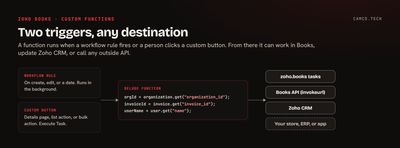
The basics in one minute
Zoho's functions guide covers setup: Settings, then Workflow Actions, then Functions, then New Function. Pick a module, choose Deluge, and write the script. Functions run in the background, so nobody waits on them.
Every function gets maps for the organization, the user, and the record. That's where the IDs come from:
orgId = organization.get("organization_id");
invoiceId = invoice.get("invoice_id");
userName = user.get("name");
Functions attach to things in two ways:
| Trigger | Where you set it | Use it for |
|---|---|---|
| Workflow rule | Settings > Workflow Rules, action type Functions | Automatic jobs on create, edit, or a date |
| Custom button | Settings > the module > Buttons, action Execute Task | Jobs a person decides to run |
Custom buttons can sit on a record's details page, in a list's action menu, or in the bulk action menu for many records at once. Zoho's custom buttons page lists them for the Premium, Elite, and Ultimate plans, with up to 10 per module.
1. Email the invoice to the right people automatically
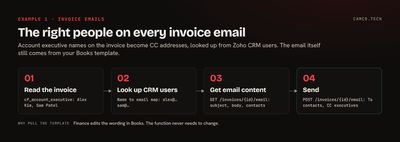
The job: every invoice goes to the customer's contacts, with the account executives on the deal copied. Someone was looking up the reps in CRM and adding them by hand.
The invoice has a multi-select field listing its account executives by name. The function reads those names, matches them to email addresses from the CRM user list, pulls the invoice's default email content, and sends it through the Books invoices API:
//
// WORKFLOW ON INVOICE CREATE: EMAIL CONTACTS, CC THE ACCOUNT EXECUTIVES
//
orgId = organization.get("organization_id");
invoiceId = invoice.get("invoice_id");
invoiceMp = zoho.books.getRecordsByID("invoices",orgId,invoiceId,"zbooks").getJSON("invoice");
aeNameLst = invoiceMp.getJSON("custom_field_hash").getJSON("cf_account_executive").toList();
// BUILD A NAME TO EMAIL LOOKUP FROM CRM USERS
crmUserMp = Map();
for each usr in zoho.crm.getRecords("users").getJSON("users").toList()
{
	crmUserMp.put(usr.getJSON("full_name"),usr.getJSON("email"));
}
ccEmailLst = List();
for each aeName in aeNameLst
{
	if(crmUserMp.containKey(aeName))
	{
		ccEmailLst.add(crmUserMp.get(aeName));
	}
}
// GET THE INVOICE'S DEFAULT EMAIL CONTENT AND RECIPIENTS
emailResp = invokeurl
[
	url :"https://www.zohoapis.com/books/v3/invoices/" + invoiceId + "/email?organization_id=" + orgId
	type :GET
	connection:"zbooks"
];
emailMp = emailResp.getJSON("data");
toEmailLst = List();
for each contactMp in emailMp.getJSON("to_contacts").toList()
{
	toEmailLst.add(contactMp.getJSON("email"));
}
// SEND IT
sendMp = Map();
sendMp.put("send_from_org_email_id",true);
sendMp.put("to_mail_ids",toEmailLst);
sendMp.put("cc_mail_ids",ccEmailLst);
sendMp.put("subject",emailMp.getJSON("subject"));
sendMp.put("body",emailMp.getJSON("body"));
paramsMp = Map();
paramsMp.put("JSONString",sendMp.toString());
sendResp = invokeurl
[
	url :"https://www.zohoapis.com/books/v3/invoices/" + invoiceId + "/email?organization_id=" + orgId
	type :POST
	parameters:paramsMp
	connection:"zbooks"
];
info sendResp;
Pulling the email content from Books, instead of writing it in the function, means the invoice still uses your normal template. Finance can change the wording in Books without touching code.
2. Match Books items to CRM products by ID, not name
The job: when a deal closes in Zoho CRM, a function builds the sales order in Books from the deal's line items. Matching items by name breaks the first time someone renames a product.
When Zoho CRM and Books are synced, Books items carry the CRM product's ID. So the function searches Books by that ID:
//
// FIND THE BOOKS ITEM FOR EACH CRM LINE ITEM BY ITS CRM PRODUCT ID
//
lineItemLst = List();
for each lineMp in dealMp.getJSON("Service_Details")
{
	searchMp = Map();
	searchMp.put("zcrm_product_id",lineMp.getJSON("Product").getJSON("id"));
	itemMp = zoho.books.getRecords("items",orgId,searchMp,"zbooks").getJSON("items").get(0);
	soLineMp = Map();
	soLineMp.put("item_id",itemMp.getJSON("item_id"));
	soLineMp.put("rate",lineMp.getJSON("Amount"));
	soLineMp.put("quantity",lineMp.getJSON("Qty"));
	lineItemLst.add(soLineMp);
}
The same trick works for customers: Books contacts synced from CRM carry a zcrm_account_id, so you can confirm you have the right customer before creating anything against it.
3. A custom button that pushes a sales order to your online store
The job: a wholesale business takes orders in Books and needs some of them created in its online store. Staff were retyping them.
A custom button on the sales order (Execute Task, on the details page) does it in one click. The trick that makes it reliable is building a lookup map once, SKU to store product ID, then checking every line against it:
//
// CUSTOM BUTTON ON SALES ORDER: SEND THE ORDER TO THE STORE
//
orgId = organization.get("organization_id");
soMp = zoho.books.getRecordsByID("salesorders",orgId,salesorder.get("salesorder_id"),"zbooks").getJSON("salesorder");
// ONE CALL FOR THE STORE'S PRODUCTS, THEN A SKU LOOKUP MAP
storeProducts = invokeurl
[
	url :"https://store.example.com/api/products?per_page=100"
	type :GET
	connection:"store_api"
];
skuToIdMp = Map();
for each productMp in storeProducts.toList()
{
	skuToIdMp.put(productMp.getJSON("sku"),productMp.getJSON("id"));
}
storeLineLst = List();
missingSkuLst = List();
for each lineMp in soMp.getJSON("line_items")
{
	skuStr = lineMp.getJSON("sku");
	if(skuToIdMp.containKey(skuStr))
	{
		storeLineLst.add({"product_id":skuToIdMp.get(skuStr),"quantity":lineMp.getJSON("quantity").toLong()});
	}
	else
	{
		missingSkuLst.add(skuStr);
	}
}
// ... CREATE THE STORE ORDER WITH storeLineLst ...
// RECORD ANY SKUS THE STORE DOESN'T HAVE ON THE SALES ORDER ITSELF
if(missingSkuLst.size() > 0)
{
	info "MISSING SKUS: " + missingSkuLst.toString(", ");
}
One call for the product list and a map lookup per line is much faster than one search call per line, and it keeps the function well inside its daily invokeurl allowance. In production we also write the missing SKUs to a custom field on the sales order, so nothing gets silently dropped and staff can see what to add to the store.
4. Force a re-sync of contacts from Zoho CRM
The job: a customer's contacts in CRM changed and Books needs the updated contact persons now, not at the next sync.
Books has a "re-sync contacts from Zoho CRM" option on the customer record. Watching what that option calls in the browser showed an endpoint a function can call directly:
//
// RE-IMPORT THE CRM CONTACTS FOR THIS BOOKS CUSTOMER AS CONTACT PERSONS
//
resyncResp = invokeurl
[
	url :"https://books.zoho.com/api/v3/crm/customers/" + booksCustomerId + "/reimport"
	type :POST
	parameters:Map()
	connection:"zbooks"
];
info resyncResp;
It pulls every contact related to the account in CRM into the Books customer as contact persons, exactly like the button. We call it from a CRM workflow when an account's contacts change, so Books is always current before the next invoice goes out.
This endpoint isn't in Zoho's published API reference. It's what the Books interface itself uses, so it works today, but treat it as something to retest after major Books updates.
5. Page through more than 200 records
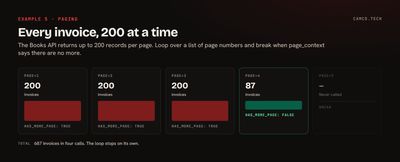
The job: a function needs every open invoice, and the Books API returns at most 200 per page.
Deluge has no while loop, so loop over a list of page numbers and stop when the API says there are no more pages:
//
// COLLECT EVERY UNPAID INVOICE, 200 PER PAGE
//
allInvoiceLst = List();
for each pageInt in {1,2,3,4,5,6,7,8,9,10}
{
	pageResp = invokeurl
	[
		url :"https://www.zohoapis.com/books/v3/invoices?organization_id=" + orgId + "&status=unpaid&per_page=200&page=" + pageInt
		type :GET
		connection:"zbooks"
	];
	allInvoiceLst.addAll(pageResp.getJSON("invoices"));
	if(pageResp.getJSON("page_context").getJSON("has_more_page") = false)
	{
		break;
	}
}
info allInvoiceLst.size();
Ten pages covers 2,000 invoices. If you need more, extend the list or move the job to a schedule. Our Deluge tips post shows how to build a page list of any length.
Make functions report back
Two features turn a function from a black box into something your team can trust.
Custom execution status. A function can return a map with a status code and a message, and Books shows the message when it blocks or fails a workflow. Zoho lists the codes:
| Code | Meaning |
|---|---|
| 1000 | Success, the workflow continues |
| 1001 | Failure |
| 1003 | Invalid input |
| 1004 | Business validation failed |
| 1005 | External service error |
| 1007 | Record not found |
| 1008 | Limit exceeded |
Code 1004 is the useful one for rules like "an invoice over $10,000 needs a PO number." Return it with a clear message and the user sees exactly what to fix.
The usage panel. View Deluge Components Usage in the editor header shows today's total, used, and remaining count for invokeurl calls, webhooks, and emails. Check it before you put a function on a high-volume workflow.
What we usually build first in Books
- Invoice and estimate emails that copy the right internal people automatically.
- Sales orders and projects created from won CRM deals, matched by CRM IDs.
- A validation function on invoices that blocks the common mistakes before they're sent.
- Custom buttons for the jobs staff do by hand on one record at a time.
- A nightly scheduled job that reconciles Books against the system it syncs with.
Getting started
Pick the task in Books your team repeats most often and write it down step by step. If every step is "look something up and copy it somewhere," it's a function. Our invokeUrl guide covers the API side, and our Zoho Books work covers having us build it.