A Zoho CRM Blueprint turns a process into a set of states and the transitions between them, and each transition says who can run it, what they must fill in, and what happens automatically afterward. The five examples below are the ones we build most often: lead follow-up, a gated deal pipeline, discount sign-off, a sold-job handoff, and support SLAs. Each one uses a different Blueprint feature, so together they cover most of what the tool can do.
These are patterns from our Zoho CRM implementation work. Copy the structure, rename the states to match your business, and you'll have a working first draft.
What each example uses
| Example | Module | Blueprint feature it shows |
|---|---|---|
| 1. Lead follow-up | Leads | Multiple transitions, a same-state loop, and an automatic transition |
| 2. Gated deal pipeline | Deals | Mandatory fields and attachments during a transition, plus a common transition |
| 3. Discount sign-off | Deals | Before-transition criteria and restricted transition owners |
| 4. Sold-job handoff | Deals | A parallel transition split across three teams |
| 5. Support case SLA | Cases | State time limits, escalations, and SLA actions |
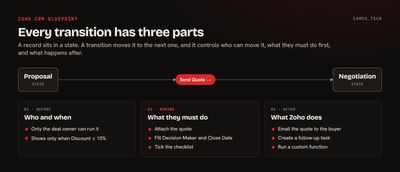
How a Blueprint is put together
Every example uses the same three-part structure. Zoho's design guide covers each option in detail.
- Before sets who can run the transition (specific users or portal users) and the criteria that decide when it appears on a record.
- During is what the user must do to complete it: fill fields, tick a checklist, add a note or attachment, log a call, or attach a quote. Each item can be mandatory or optional.
- After is what Zoho does once it's done: send email, create tasks or meetings, update fields, create a record, call a webhook, or run a custom function.
A Blueprint is built on one picklist field in one layout, usually Stage on Deals or Lead Status on Leads. Once it's live, that field moves through transitions rather than by hand.
The amount you can build depends on your edition. These limits come from Zoho's complete feature list:
| Edition | Blueprints | Transitions per Blueprint | Common transitions per Blueprint | Items in a During step |
|---|---|---|---|---|
| Professional | 3 | 10 | 2 | 4 |
| Enterprise | 50 | 100 | 10 | 10 |
| Ultimate | 100 | 300 | 25 | 50 |
Free and Standard don't include Blueprint. The counts include Zoho's default Blueprints.
Example 1: Lead follow-up that doesn't let leads go cold
The process: new leads get contacted fast, reps keep trying until they reach someone, and leads that never answer get moved out of the way instead of sitting in "Not Contacted" forever.
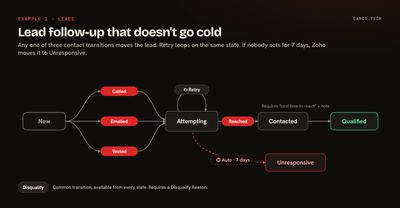
States: New, Attempting, Contacted, Qualified, Unresponsive, Disqualified.
How it's built:
- From New to Attempting, create three transitions: Called, Emailed, Texted. Zoho calls these multiple transitions: any one of them moves the lead. Each one asks the rep to log the call or note in the During step.
- Add a Retry transition that starts and ends on Attempting. Blueprint allows a transition with the same From and To state, so every attempt is logged without the lead changing stage.
- On Attempting, add an automatic transition to Unresponsive with a 7-day wait. If nobody moves the lead on, Zoho does.
- From Attempting to Contacted, require the "best time to reach" field and a short note on what the lead needs.
- Make Disqualified a common transition with a mandatory Disqualify Reason picklist, so it's available from every state.
Why it works: the automatic transition keeps the pipeline honest without anyone running a cleanup report, and the reason picklist on Disqualified gives marketing a real answer about which sources produce junk.
Example 2: A deal pipeline where stages mean something
The process: a deal can't reach Proposal without a discovery call on record, can't reach Negotiation without a quote, and can't be marked lost without a reason.
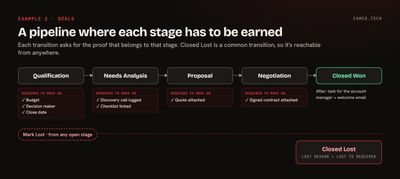
States: Qualification, Needs Analysis, Proposal, Negotiation, Closed Won, Closed Lost.
How it's built:
- Qualification to Needs Analysis: mandatory Budget, Decision Maker, and Target Close Date fields.
- Needs Analysis to Proposal: a mandatory call or meeting logged in the During step, plus a checklist (pain confirmed, timeline confirmed, competitors named).
- Proposal to Negotiation: a mandatory quote attached as an associated item. Quotes, Sales Orders, Tasks, Calls, Meetings, Notes, and Attachments can all be required inside a transition.
- Negotiation to Closed Won: a mandatory signed contract attachment.
- Closed Lost as a common transition from every open state, with a mandatory Lost Reason and Lost To field.
- After actions on Closed Won: create a task for the account manager and send the welcome email template.
Why it works: your pipeline report starts telling the truth. A deal in Negotiation has a quote. A deal in Proposal had a discovery call. Forecasts built on those stages are worth reading.
The Professional edition's limit of 4 items in a During step matters here. If a single transition needs 6 required fields plus a checklist, either split it into two transitions or plan for Enterprise.
Example 3: Discount sign-off without an email chain
The process: reps can offer up to 10% on their own. Anything above that needs a sales manager before the quote goes out.
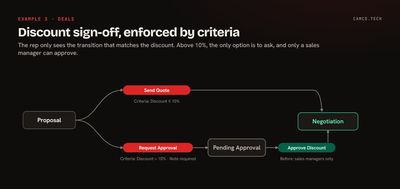
How it's built:
- Between Proposal and Negotiation, create two transitions: Send Quote and Request Discount Approval.
- On Send Quote, set Before criteria so it only appears when Discount is 10% or less.
- On Request Discount Approval, set criteria for Discount above 10%. The rep's only option is to ask, and the During step requires a note explaining the deal.
- Create an Approve Discount transition from that pending state to Negotiation, and set Before so only sales managers can run it. Zoho lets you choose which users can perform each transition.
- After actions: email the rep when the discount is approved, and update a Discount Approved By field with the manager's name.
Why it works: the rule lives in the CRM instead of in someone's memory, and every approved discount has a name and a note attached to it. If you need formal approvals with their own actions on approve and reject, Zoho's separate Approval Process is built for that, and it runs alongside Blueprint.
Example 4: Handing a sold job to three teams at once
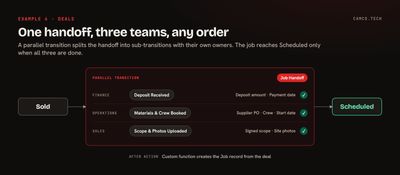
The process: when a roofing contractor closes a job, finance has to collect the deposit, operations has to order materials and book the crew, and the salesperson has to upload the signed scope and photos. All three happen at the same time, and the job can't move to Scheduled until every one is done.
How it's built:
- Create a parallel transition called Job Handoff from Sold to Scheduled.
- Add three sub-transitions: Deposit Received (finance), Materials and Crew Booked (operations), Scope and Photos Uploaded (sales). Each sub-transition can have its own owner, its own required fields, and its own criteria.
- Each team completes its piece in any order. Zoho saves each sub-transition as it's done, and the record moves to Scheduled only when all of them are complete.
- After action on the parent transition: run a custom function that creates the onboarding or job record in a custom module, so the crew lead starts with the same data sales closed on.
Here's that function, attached as an After action on the transition:
//
// BLUEPRINT AFTER ACTION: JOB HANDOFF COMPLETE
// CREATES THE JOB RECORD SO OPERATIONS STARTS FROM THE DATA SALES CLOSED ON
//
dealMp = zoho.crm.getRecordById("Deals",dealIdInt);
jobMp = Map();
jobMp.put("Name",ifnull(dealMp.getJSON("Deal_Name"),"") + " - Job");
jobMp.put("Deal",dealIdInt);
accountMp = dealMp.getJSON("Account_Name");
if(accountMp != null)
{
	jobMp.put("Account",accountMp.getJSON("id"));
}
jobMp.put("Scope_Notes",ifnull(dealMp.getJSON("Scope_Notes"),""));
jobMp.put("Deposit_Amount",ifnull(dealMp.getJSON("Deposit_Amount"),0));
createResp = zoho.crm.createRecord("Jobs",jobMp);
// LOG THE RESPONSE SO A FAILED CREATE SHOWS UP IN THE FUNCTION'S LOGS
info createResp;
Functions triggered from Blueprint get 30 seconds to run, per Zoho's function limits. One record create is well inside that. If the After action needs to call several outside systems, keep the slow work in a scheduled function so nobody waits on it. Our post on why Zoho CRM feels slow covers how that plays out on save.
Why it works: nobody has to chase the other two teams, and the job can't be scheduled before the deposit clears. We use this pattern a lot for roofing and field service companies, where the sold-to-scheduled gap is where jobs get lost.
Example 5: Support cases with an SLA that escalates itself
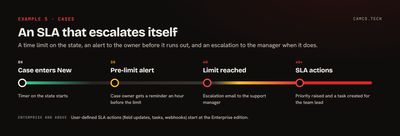
The process: high-priority cases get a first response within 4 business hours and a resolution within 2 days. If either slips, a manager hears about it before the customer has to call back.
States: New, Assigned, Waiting on Customer, Resolved, Closed.
How it's built:
- Set a time limit on New. Blueprint lets you set the maximum time a record can stay in a state.
- Add an escalation to the support manager when that limit is passed, and a pre-limit alert to the case owner an hour before.
- On Assigned, set the 2-day limit with the same escalation pattern.
- On Enterprise and above, add SLA actions such as a field update that raises the priority or a task for the team lead. Zoho notes that user-defined SLA actions start at the Enterprise edition.
- Waiting on Customer to Assigned: an automatic transition after 3 days, so cases don't sit paused indefinitely.
Why it works: the SLA is enforced by the record itself, so nobody has to watch a dashboard to catch a breach. If your support volume has outgrown the Cases module, the same thinking carries over to Zoho Desk, which has its own SLA and Blueprint tools for tickets.
What we usually change when we inherit a Blueprint
Most Blueprints we're asked to fix were built quickly to match a whiteboard drawing. The changes tend to be the same:
- Fewer states. A Blueprint with 14 states usually maps to 6 real stages plus a few statuses that belong in a separate field.
- Required fields moved to the transition where the information actually exists, not the first one.
- A common transition for Lost or Disqualified, so reps aren't stuck when a deal dies mid-stage.
- Automatic transitions on states where records tend to stall.
- After actions consolidated, so a workflow rule and a Blueprint aren't both sending the same email.
- Custom functions on transitions reviewed for anything that loops through related records.
Blueprint runs after assignment rules, scoring, workflow rules, and approvals when a record is saved, per Zoho's automation order. When a transition does something unexpected, the cause is often a workflow rule that fired first and changed a field the Blueprint depends on.
Getting your process into Blueprint
Start on paper. List your stages, what has to be true before a record leaves each one, and who is allowed to move it. That list is your Blueprint: states, During requirements, and Before owners. Build it in a sandbox first and have two or three reps run test records through it before it goes live.
If you'd like help mapping a process that crosses teams, or untangling a Blueprint that's fighting your workflow rules, that's a normal part of our Zoho CRM projects and Zoho rescue work. Or tell us what you're trying to enforce.