A Zoho CRM workflow rule has three parts: when it runs, which records it applies to, and what it does. The eight examples below are rules we set up on most accounts, from new-lead follow-up to stale-deal nudges to sending closed deals to accounting. Each one lists the exact trigger, conditions, and actions, so you can build it in a few minutes.
These come from our Zoho CRM implementation work. If your process needs stages enforced step by step rather than actions fired on events, our Blueprint examples cover that side.
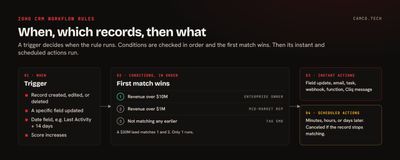
How a workflow rule is put together
Zoho's workflow configuration guide covers every option. The ones that matter most:
| Part | Options |
|---|---|
| When | Record created, edited, created or edited, or deleted; a date/time field; score; notes |
| Condition | Records matching criteria, all records, or records not matching any earlier condition |
| Instant actions | Email, task, meeting, call, field update, tags, webhook, function, create record, Cliq or Slack message |
| Scheduled actions | Email, task, field update, webhook, function, create record, after a set number of minutes, hours, or days |
Limits depend on your edition. From Zoho's feature list:
| Edition | Rules per module | Active per module | Conditions per rule |
|---|---|---|---|
| Free | 10 | 5 | Not listed |
| Standard | 30 | 15 | 5 |
| Professional | 80 | 40 | 5 |
| Enterprise | 125 | 75 | 10 |
| Ultimate | 150 | 100 | 10 |
Custom functions as workflow actions start at Enterprise: 1 instant and 5 time-based per rule. Scheduled actions are available from Standard up.
1. Follow up on every new web lead
When: Leads, on Create. Condition: Lead Source is Web Form. Instant actions: a task for the lead owner, "Call new web lead," due today; an email to the lead using your "Thanks for reaching out" template. Scheduled action: 2 days later, a second email with a booking link.
Why it works: the lead hears back within seconds, the rep has a task waiting, and the second email goes out even if the rep gets busy. If the rep converts or disqualifies the lead first, edit the condition to also require Lead Status is Not Contacted, and the scheduled email drops automatically. Zoho removes scheduled actions when a record no longer meets the rule's criteria.
2. Nudge deals that have gone quiet
When: Deals, on a date/time field: Last Activity Time, 14 days after, at 9:00 AM, once. Condition: Stage is not Closed Won and not Closed Lost. Instant actions: a task for the deal owner, "No activity in 14 days: next step?"; a field update setting a "Stale" checkbox to true.
Why it works: nobody has to run a stale-deal report. The checkbox also feeds a list view and a dashboard tile, so managers see the count without asking. A second rule on Edit can clear the checkbox when new activity is logged.
Date-based rules process up to 5,000 records every 10 minutes, per Zoho's guide, which is plenty for daily nudges on most pipelines.
3. Follow up after a proposal, but only if nothing happens
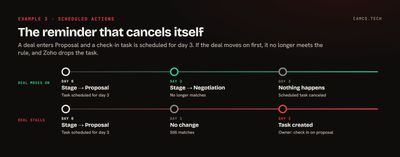
When: Deals, on Edit, when the specific field Stage is updated. Condition: Stage is Proposal. Scheduled actions: 3 days later, a task for the owner, "Check in on proposal"; 7 days later, an email to the manager if the deal is still in Proposal.
Why it works: this uses the rule we lean on most. If the deal moves to Negotiation or Closed Lost before day 3, it no longer meets the condition, and Zoho cancels the scheduled actions. Reps only get the reminder on deals that actually stalled.
4. Route leads by size with ordered conditions
When: Leads, on Create. Condition 1: Annual Revenue is greater than 10,000,000. Field update: Owner to the enterprise team lead. Tag: "Enterprise." Condition 2: Annual Revenue is greater than 1,000,000. Field update: Owner to the mid-market rep. Tag: "Mid-market." Condition 3: Records not matching any earlier condition. Tag: "SMB."
Why it works: Zoho checks conditions in order and stops at the first match. A $20M lead meets conditions 1 and 2, but only condition 1 runs. That makes tiering clean without writing "less than" on every band, and the last condition catches everything else. For round-robin or territory assignment, Zoho's assignment rules are built for that and run before workflows.
5. Alert the owner when a lead heats up
When: Leads, on Score, when the score increases. Condition: Lead Score is greater than 50 and Lead Status is not Contacted. Instant actions: a Cliq message to the owner with the lead name and score; a task due today, "High-intent lead: call."
Why it works: a lead that opens three emails and visits your pricing page in an afternoon gets a call that afternoon. The status condition stops the alert from firing again on leads the rep is already working.
6. Send closed deals to accounting or operations
When: Deals, on Edit, when the specific field Stage is updated. Condition: Stage is Closed Won. Instant actions: a webhook to your accounting or job-management system with the deal, account, and amount fields; an email to operations using a "New job sold" template.
Why it works: the next team starts the moment the deal closes, with the data the sales rep entered. Webhooks need no code: you map CRM fields into the request in the workflow screen. If the other system needs logic or a response, use a function instead; our invokeUrl guide covers that.
A related safeguard: a rule on Delete for Deals can send an email or webhook when a deal is deleted. Delete triggers support email notifications, webhooks, and functions.
7. Recalculate totals when a line changes
When: a custom Estimates module, on Create or Edit, with "Repeat this workflow every time a record is edited" turned on. Condition: All records. Instant action: a custom function that adds up the estimate's line items and writes the subtotal, tax, and total back to the record.
We built this for a painting contractor whose estimates have a line for each room and surface. Every time an estimator changes a line, the totals and the customer-facing estimate update without anyone pressing a button.
//
// WORKFLOW: ESTIMATE CREATED OR EDITED. ADD UP THE LINES AND WRITE THE TOTALS BACK
//
estimateMp = zoho.crm.getRecordById("Estimates",estimateIdInt);
subtotalDec = 0.0;
for each lineMp in ifnull(estimateMp.getJSON("Line_Items"),List())
{
	subtotalDec = subtotalDec + ifnull(lineMp.getJSON("Line_Total"),0).toDecimal();
}
taxDec = (subtotalDec * 0.07).round(2);
updateMp = Map();
updateMp.put("Subtotal",subtotalDec.round(2));
updateMp.put("Tax",taxDec);
updateMp.put("Total",(subtotalDec + taxDec).round(2));
updateResp = zoho.crm.updateRecord("Estimates",estimateIdInt,updateMp);
info updateResp;
Why it works: the function writes only the total fields, which the rule's own condition doesn't care about. Zoho also stops runaway loops: a rule that re-triggers itself runs twice before stopping, and rules that trigger each other stop after three runs. Even so, a function that updates the record it was triggered on should change as few fields as possible. Our post on why Zoho CRM feels slow covers what too much on-save work looks like.
8. Remind customers before a renewal
When: Deals, on Edit, when the specific field Stage is updated. Condition: Stage is Closed Won and Type is Annual Contract. Scheduled actions: 330 days later, a task for the account manager, "Renewal in 35 days"; 335 days later, an email to the customer from a renewal template.
Why it works: renewal follow-up is set up at the moment the contract is won, so it doesn't depend on someone remembering in eleven months. If the deal is later marked lost or deleted, the scheduled actions go with it.
Things worth knowing before you build
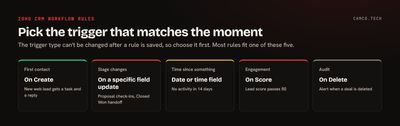
- The trigger type is permanent. You can't change a rule from Create to a date trigger later; you'd rebuild it. Decide first.
- Field updates run first. Within a rule, field updates happen before emails, tasks, webhooks, and functions, so an email can include a value the same rule just set.
- Mass updates and macros trigger rules. A bulk edit of 2,000 records fires every matching rule 2,000 times. Plan large cleanups around that.
- Scheduled actions can run a few minutes late, and if the calculated time has already passed, they run immediately.
- Order matters. Rules on the same module run in the order you set, and you can reorder them.
What we usually change on inherited accounts
- Merge rules that do the same thing on the same module.
- Replace "on any edit" triggers with specific-field triggers, so rules fire only when it matters.
- Move internal alerts from email to Cliq, so they reach people where they work.
- Add a catch-all condition so no record falls through routing unnoticed.
- Turn reminder emails into scheduled actions that cancel themselves when the deal moves.
- Check the Workflow Usage report for rules that fire thousands of times a week and do little.
Getting your follow-up out of people's heads
Start with the one follow-up your team forgets most often and turn it into a rule this week. Then add one rule at a time, and check its usage after a few days to confirm it fires when you expect. If you'd rather hand the whole design to us, that's what our Zoho CRM and Zoho rescue work covers.