A Zoho CRM widget is a small web app that runs inside Zoho CRM. You build it with HTML, CSS, and JavaScript, use Zoho's JS SDK to read and write CRM records, and place it where your team already works: a web tab, a button, a related list, a dashboard, or a Blueprint transition. When the standard screens get you 90% of the way, a widget is how you build the last 10% as a real tool instead of a workaround.
This post covers where widgets can live, how to build one, and two widgets we built for a sales development agency. If you'd rather have us build yours, it's part of our Zoho CRM work.
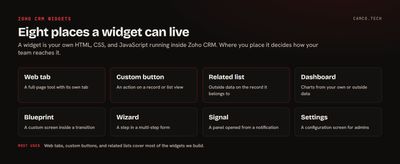
Where can a widget live in Zoho CRM?
Zoho's widget documentation lists eight locations, and the usage guide describes what each one is for:
| Location | What it's good for |
|---|---|
| Web tab | A full-page tool with its own tab, visible to everyone in the org |
| Custom button | An action on a record or list: run a calculation, call another system, open a form |
| Custom related list | Data from another system shown on the record it belongs to |
| Dashboard | Charts and metrics from your own reports or outside data |
| Blueprint | A custom screen inside a transition, one widget per transition |
| Wizard | A step inside a multi-step form |
| Signal | A panel that opens from a notification |
| Settings | A configuration screen for admins |
Widgets are available on the Professional, Enterprise, and Ultimate editions, and Zoho allows up to 200 per org on Enterprise and Ultimate. The person building them needs Developer Permissions on their profile, under Setup > Users and Control > Security Control.
Case 1: A calling workspace in a web tab
The problem. the agency handles outbound calling campaigns for its clients. Its reps worked from target lists stored in a custom junction module that links contacts to lists and campaigns. Getting a rep from "my list for today" to "the next person to call" meant several views, a lot of clicking, and no way to filter by the contact's time zone.
What we built. A web tab called Calling Mode. It loads the rep's target list contacts into one fast table with filters for campaign, list, tag, time zone, and rep. Each row shows the contact's last call outcome and date, and clicking a contact opens a panel for the call. Reps choose which columns they see, and the widget remembers it.
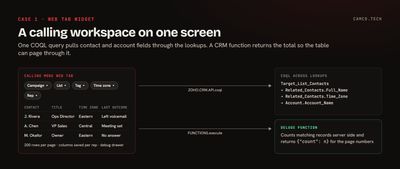
Three techniques made it fast.
One COQL query across lookups. Instead of fetching list rows and then each contact, the widget asks for the contact and account fields through the lookups in a single COQL query, 200 rows at a time. The field list lives in a small config file, so adding a column doesn't touch the query code:
// coql-config.js: THE MODULE AND FIELDS THE TABLE SHOWS
export const coqlConfig = {
  module: "Target_List_Contacts",
  fields: [
    "Account.Account_Name",
    "Related_Contacts.Full_Name",
    "Related_Contacts.Title",
    "Related_Contacts.Mobile",
    "Related_Contacts.Time_Zone",
    "Related_Contacts.Last_Call_Outcome",
    "Related_Contacts.Last_Call_Date"
  ]
};

// ONE PAGE OF 200 ROWS, CONTACT AND ACCOUNT FIELDS INCLUDED
async function fetchPage(page = 1, pageSize = 200) {
  const offset = (page - 1) * pageSize;
  const query = `select ${coqlConfig.fields.join(",")} from ${coqlConfig.module} limit ${pageSize} offset ${offset}`;
  const resp = await ZOHO.CRM.API.coql({ query });
  return resp.data || [];
}
A Deluge function for the record count. The table needs a total to show page numbers. The widget asks a CRM function for it with ZOHO.CRM.FUNCTIONS.execute, which runs a Zoho CRM function from a widget and returns its output, as Zoho's JS SDK example shows. The count runs server side, and the widget stays light:
// ASK A CRM FUNCTION HOW MANY RECORDS MATCH THE CURRENT FILTERS
async function getRecordCount(moduleApiName, criteria = "") {
  const resp = await ZOHO.CRM.FUNCTIONS.execute("get_module_record_count", {
    arguments: JSON.stringify({ module: moduleApiName, criteria: criteria })
  });
  return JSON.parse(resp.details.output).count;
}
A debug drawer built in. Every request and response is logged to a collapsible panel at the bottom of the widget, with a box to run a test COQL query by hand. When a rep says "my list looks wrong," the admin opens the drawer and sees the exact query and reply. It took an hour to build and saved many more during rollout.
The result. Reps work their list from one screen, filtered to the contacts in a time zone where it's a sensible hour to call, with each contact's last outcome in front of them.
Case 2: A dialer that logs the call where it happened
The problem. The same team made calls through a cloud phone system that wasn't connected to the CRM. Call notes lived in the phone app or nowhere.
What we built. A dialer widget that signs in to the phone system, places and answers calls from inside CRM, and saves the rep's notes to the record when the call ends. The JS SDK gives a widget control of CRM's dialer panel, so the widget expands it for a call and collapses it afterward:
// PLACE THE CALL AND SHOW WHO'S ON THE LINE
Handler.dial = function (number) {
  ZOHO.CRM.UI.Dialer.maximize();
  RC.makeCall(number);
  ZOHO.CRM.API.getRecord({ Entity: Handler.Data.EntityType, RecordID: Handler.Data.EntityID })
    .then(function (resp) {
      Handler.render("CallInProgress", { Name: resp.data[0].Full_Name, Number: number });
    });
};

// AFTER THE CALL: SAVE THE REP'S NOTES TO THE SAME RECORD
Handler.saveNotes = function () {
  ZOHO.CRM.API.addNotes({
    Entity: Handler.Data.EntityType,
    RecordID: Handler.Data.EntityID,
    Title: $("#feedbacktopic").val(),
    Content: $("#calleeFeedBack").val()
  }).then(function () {
    ZOHO.CRM.UI.Dialer.minimize();
  });
};
The result. The call, the caller's name, and the notes all sit on the CRM record. Nobody copies notes over at the end of the day.
How do you build a Zoho CRM widget?
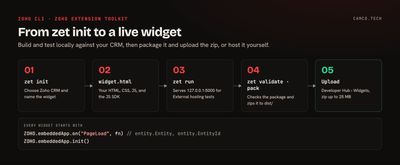
Zoho's CLI, the Zoho Extension Toolkit, scaffolds and packages widgets. The steps below follow Zoho's CLI install guide and widget creation guide:
- Install the CLI:
npm install -g zoho-extension-toolkit, then runzetto confirm it works. - Create a project:
zet init, choose Zoho CRM, and name the widget. Your page isapp/widget.html. - Build the page with your own HTML, CSS, and JavaScript, plus the JS SDK for CRM data.
- Test it live in CRM:
zet runserves the widget athttp://127.0.0.1:5000/app/widget.html. Create a widget in CRM with External hosting and that address as the base URL. It only works on your machine, and you refresh the CRM page to see changes. - Package it:
zet validatechecks the package, andzet packwrites an uploadable zip to thedistfolder. - Upload it: in Setup > Developer Hub > Widgets, create the widget, choose its type, and pick Zoho hosting (upload the zip, 25 MB maximum) or External hosting (enter your own URL).
Every widget starts the same way. Register for the PageLoad event, then initialize. When the widget opens on a record, the event tells you which module and record you're on:
// RUNS WHEN CRM OPENS THE WIDGET; entity SAYS WHICH RECORD WE'RE ON
ZOHO.embeddedApp.on("PageLoad", function (entity) {
  ZOHO.CRM.API.getRecord({ Entity: entity.Entity, RecordID: entity.EntityId })
    .then(function (resp) {
      const record = resp.data[0];
      return ZOHO.CRM.CONFIG.getCurrentUser().then(function (userResp) {
        render(record, userResp.users[0]);
      });
    });
});
ZOHO.embeddedApp.init();
From there, ZOHO.CRM.API covers reading, writing, searching, and COQL. ZOHO.CRM.FUNCTIONS.execute runs your Deluge functions. And ZOHO.CRM.CONNECTION.invoke calls outside APIs through a Zoho connection, so keys never sit in the widget's JavaScript.
Widget, client script, or Deluge?
Zoho CRM gives you three ways to add custom behavior, and they fit different jobs:
| You need | Use |
|---|---|
| A new screen or tool with its own layout | A widget |
| To react to field changes on the standard create and edit pages | A client script |
| Logic that runs on save, on a schedule, or behind a button with no UI | A Deluge function |
Most of our builds combine them. The calling workspace above is a widget for the screen and a Deluge function for the record count. Our guide to calling APIs with invokeUrl covers the Deluge side, and our Blueprint examples show where a widget can sit inside a transition.
What we usually build with widgets
- Calling and call-logging workspaces for inside sales teams.
- Related lists that show orders, invoices, or tickets from another system on the account.
- Quote and pricing calculators behind a custom button.
- Dashboards that combine CRM data with outside data in one view.
- Blueprint transition screens that collect structured data a standard form can't.
- Admin settings screens for extensions, so a client can change behavior without code.
Things that make widgets easier to live with
- Keep secrets out of the browser. Use
ZOHO.CRM.CONNECTION.invokeor a Deluge function for anything that needs a key. - Do heavy work server side. Counts, joins across many modules, and outside calls belong in a function the widget calls.
- Put field lists in config. Adding a column then means editing one file, not hunting through query code.
- Log requests in a debug panel. Support gets much faster when the admin can see the query and the reply.
- Test in a sandbox first.
zet runwith External hosting works against a sandbox as well as production.
Getting a widget built
Start with the screen your team keeps wishing existed: the list they rebuild in a spreadsheet every morning, or the two systems they copy between. That's usually the first widget worth building. If you'd like us to scope it, that's what our Zoho CRM and API integration work covers.