There are four ways to connect ChatGPT and other AI models to Zoho CRM. Zia, Zoho's built-in AI, can run on ChatGPT. Zoho Flow has ready-made ChatGPT actions. A Deluge function can call OpenAI's API from any workflow. And Zoho MCP lets ChatGPT, Claude, and other AI tools read and update your CRM directly. Which one you want depends on whether the AI should work inside the CRM, in the background, or alongside your team.
This post walks through each option with a concrete setup, from no code to full control. It's the same order we follow on our generative AI projects for Zoho clients.
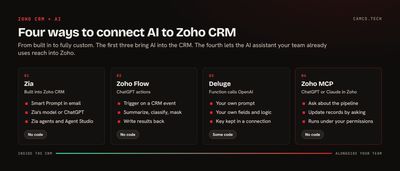
Which option fits what you want to do?
| You want to | Use | Code needed | OpenAI key needed |
|---|---|---|---|
| Help reps write emails inside the CRM | Zia Smart Prompt | None | Only if you pick ChatGPT over Zia's own model |
| Hand a routine task to an AI agent | Zia agents | None | Depends on the agent |
| Summarize or classify records as they come in | Zoho Flow + ChatGPT | None | Yes |
| Control the exact prompt, fields, and logic | Deluge function + OpenAI API | Some | Yes |
| Ask an AI assistant about your pipeline, or let it update records | Zoho MCP | None to set up | Depends on the AI client |
Most of the accounts we work on end up using two of these. Zia covers what reps do inside the CRM, and Flow or Deluge covers the background work.
Option 1: Zia, built into Zoho CRM
Zia is the AI that ships with Zoho CRM. Before reaching for an outside tool, look at what it already does. Zoho's Zia page lists predictions such as Zia scores and churn prediction, anomaly detection on forecasts, data enrichment, call transcription and sentiment, and generative features that create modules, reports, and workflows.
Two parts of Zia matter most for a ChatGPT question.
Smart Prompt suggests prompts and drafts content in the email compose window and in email templates. Admins can choose which model runs it: Zia's in-house model or OpenAI's ChatGPT, according to Zoho's announcement. Zia's own model needs no external account or API key, and Zoho processes the data inside its own environment. ChatGPT needs your OpenAI key. Zoho's feature list also shows Smart Prompt options for Gemini, Claude, Cohere, DeepSeek, and a Zoho-hosted LLM.
Zia agents carry out business tasks on their own. Zoho's CRM page points to two sources: prebuilt agents in the Zia Agent Store and custom agents you build in Zia Agent Studio. Agent Studio also works from Cursor, VS Code, and Claude Code for teams that would rather build in an editor.
Which Zia features you get depends on your edition, so check the feature list against your plan before you design around one.
Option 2: Zoho Flow with ChatGPT actions (no code)
Zoho Flow connects Zoho CRM to ChatGPT with drag-and-drop steps. Flow lists 10 Zoho CRM triggers (such as New lead, Updated deal, and New note) and 33 ChatGPT actions, including Summarise text, Assess urgency level, Extract JSON from text, Mask sensitive data, Generate email reply, and Create chat completion.
A flow we set up often triages web leads:
- Trigger: Zoho CRM, New lead.
- Action: ChatGPT, Mask sensitive data, run on the lead's Description so personal details are masked before the text reaches the model.
- Action: ChatGPT, Summarise text, on the masked description.
- Action: ChatGPT, Assess urgency level, on the same text.
- Action: Zoho CRM, Update module entry: write the summary and urgency into two custom fields on the lead.
- Action: Zoho CRM, Add note, with the summary, so it shows on the lead's timeline.
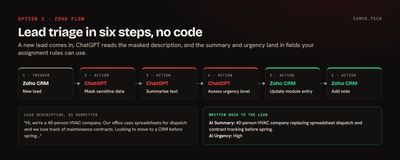
With the summary and urgency in fields, your assignment rules and views can use them. A rep opens the lead and sees two lines instead of a wall of form text.
Flow is the right choice when the steps are standard and you want someone other than a developer to own them.
Option 3: A Deluge function that calls OpenAI
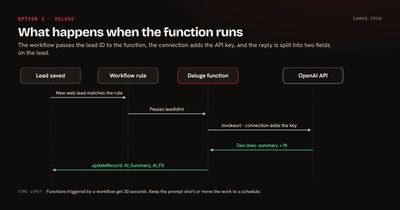
When you need your own prompt, specific fields, or logic Flow doesn't offer, call OpenAI's API from a Deluge function. Attach it to a workflow rule and it runs on every matching record.
Store the API key in a connection, never in the code. In Setup > Developer Hub > Connections, create a custom service with the API Key authentication type, set the param type to Header, name the parameter Authorization, and enter Bearer followed by your key as the value. The function then refers to the connection by name.
Here's a function that reads a new lead, asks the model for a one-line summary and a fit rating, and writes both back:
//
// WORKFLOW: NEW WEB LEAD
// SENDS THE LEAD'S DESCRIPTION TO OPENAI AND WRITES A SUMMARY AND FIT RATING BACK
//
leadMp = zoho.crm.getRecordById("Leads",leadIdInt);
descStr = ifnull(leadMp.getJSON("Description"),"");
if(descStr = "")
{
	return;
}
// BUILD THE REQUEST FOR THE OPENAI RESPONSES API
bodyMp = Map();
bodyMp.put("model","gpt-model-name");
bodyMp.put("instructions","You review inbound leads for a B2B service company. Reply with two lines. Line 1: a one-sentence summary of what they need. Line 2: High, Medium, or Low fit.");
bodyMp.put("input",descStr);
headerMp = Map();
headerMp.put("Content-Type","application/json");
aiResp = invokeurl
[
	url :"https://api.openai.com/v1/responses"
	type :POST
	parameters:bodyMp.toString()
	headers:headerMp
	connection:"openai"
];
// THE TEXT LIVES IN output > content > text ON THE MESSAGE ITEM
replyStr = "";
for each outputMp in ifnull(aiResp.getJSON("output"),List())
{
	if(outputMp.getJSON("type") = "message")
	{
		replyStr = outputMp.getJSON("content").get(0).getJSON("text");
	}
}
info replyStr;
linesLst = replyStr.toList("\n");
updateMp = Map();
updateMp.put("AI_Summary",linesLst.get(0));
if(linesLst.size() > 1)
{
	updateMp.put("AI_Fit",linesLst.get(1).trim());
}
updateResp = zoho.crm.updateRecord("Leads",leadIdInt,updateMp);
info updateResp;
Replace gpt-model-name with the model your OpenAI account uses, and openai with your connection's link name. The response shape comes from OpenAI's Responses API reference.
Two things to plan for. Functions triggered by a workflow get 30 seconds, per Zoho's function limits, which is plenty for a short prompt but not for a long document. And the call happens while the record saves, so keep the prompt short or run the work on a schedule. Our post on why Zoho CRM feels slow covers what runs on save and how to keep it quick.
Option 4: Zoho MCP, so ChatGPT or Claude can work in your CRM
The first three options bring AI into Zoho CRM. Zoho MCP works the other way: it lets an AI assistant your team already uses reach into Zoho.
MCP stands for Model Context Protocol, an open standard for connecting AI tools to other software. Zoho MCP lets you set up an MCP server for your Zoho account, choose which actions to expose, and connect an AI client to it. Zoho describes it as "compatible with Claude, GPT, and other AI agents right out of the box," and its FAQ lists CRM, Mail, Calendar, Desk, Cliq, Projects, and WorkDrive among the supported apps.
Security works the way you'd want. Sign-in uses OAuth, and the agent acts under the user's own permissions, so it can only do what that person could do in Zoho.
We run Camco this way. Our own Zoho CRM, Books, Projects, Cliq, and WorkDrive are connected to Claude through MCP, so "which deals haven't had activity in two weeks" or "log this call against the account" is one sentence instead of five clicks.
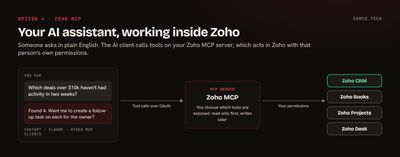
Start with read-only tools for a week. Once the team trusts the answers, add the actions that write data.
What should you send to an AI model?
Whichever option you pick, decide which fields leave the CRM before anything goes live.
- Send the fields the task needs and nothing else. A lead summary needs the description, not the phone number.
- Use Flow's Mask sensitive data action, or strip fields in Deluge, before text goes to an outside model.
- Where Zia's own model covers the task, it keeps the data inside Zoho's environment and needs no outside key.
- Write AI output to its own fields, such as "AI Summary," so reps can tell what a person entered from what a model wrote.
What we usually set up first
On most Zoho CRM accounts, the first AI work that pays off is small:
- Smart Prompt turned on for the sales team, with two or three email templates built around it.
- A lead triage flow or function that writes a summary and a fit rating into fields.
- Assignment rules and views that use those fields, so hot leads reach the right rep first.
- Call transcription and sentiment for teams that live on the phone.
- An MCP connection for managers who want answers about the pipeline without building a report.
Once that's working, Blueprint is a good next step: an AI-written summary is a useful required field when a deal moves stages. Our Blueprint examples show how to require it.
Getting AI into your Zoho CRM
Pick one task your team repeats every day, such as reading new leads or drafting follow-ups, and connect AI to that first. Use Zia if it covers the task, Flow if the steps are standard, Deluge if you need control, and MCP if your team wants to ask questions in plain English.
If you want help choosing or building it, that's what our generative AI and Zoho CRM work covers. Or tell us what you'd like AI to take off your team's plate.