The Zoho CRM Bulk Write API inserts, updates, or upserts up to 25,000 records in one job from a zipped CSV file. You upload the file, create a job that says which module and columns it maps to, and Zoho processes it in the background, then calls your callback URL or lets you check the status. Its partner, the Bulk Read API, exports up to 200,000 records per job the same way.
This guide covers both, with the Deluge we use to run them and the limits that shape a design. If you'd rather have us move the data, that's our API integration work.
When should you use the bulk APIs?
Not for every job. Here's how we decide:
| Records | Use | Why |
|---|---|---|
| A few at a time, as things happen | zoho.crm.createRecord or updateRecord in a function |
Simple, and workflow rules run as normal |
| Up to a few thousand, now and then | The standard insert or update API, 100 records per call | Zoho's update endpoint takes up to 100 records per request |
| Tens of thousands, or a regular large sync | Bulk Write | One job per 25,000 rows, processed in the background |
| Exporting a module or a filtered slice of it | Bulk Read | Up to 200,000 rows per job as CSV |
The tradeoff is timing. A normal API call answers right away. A bulk job answers later, so the code that starts it and the code that handles the result are two separate pieces.
How the Bulk Write API works
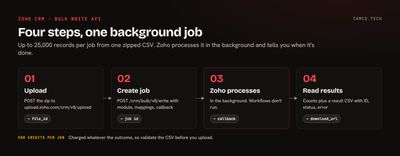
Zoho's Bulk Write overview lays out four steps:
- Prepare the file. One CSV, field API names in the first row, one record per row, all for the same module. Zip it.
- Upload it. POST the zip to
https://upload.zoho.com/crm/v8/uploadwith afeature: bulk-writeheader and your org ID inX-CRM-ORG. The response gives you afile_id. - Create the job. POST to
/crm/bulk/v8/writewith the operation (insert, update, or upsert), the module, thefile_id, which CSV column maps to which field, and an optional callback URL. - Get the result. When the job finishes, Zoho posts to your callback, or you poll
/crm/bulk/v8/write/{job_id}. The job details include counts (added, updated, skipped) and adownload_urlfor a result CSV with each row's ID, status, and error.
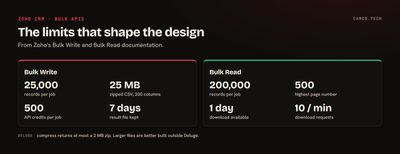
These numbers come from Zoho's Bulk Write documentation, including the upload and create job pages:
| Limit | Value |
|---|---|
| Records per CSV | 25,000 |
| Columns per CSV | 200 |
| Zip file size | 25 MB |
| Zipped files per upload | 1 |
| API credits per job | 500, whatever the outcome |
| Result file available for | 7 days |
| Workflows | Not supported on bulk write |
| Not supported | Attachments, notes, file upload fields, record images |
Two of those change how you plan. Every job costs 500 credits even if it fails, so validate the CSV before you upload it. And workflow rules don't fire, so anything that normally happens on create, like assignment or a welcome email, needs its own step after the job completes.
Running a bulk write from Deluge
Deluge can do the whole thing: build the CSV, zip it, upload it, and start the job. This function upserts contacts matched on email:
//
// BULK UPSERT CONTACTS FROM A LIST OF MAPS, MATCHED ON EMAIL
//
// 1. BUILD THE CSV: HEADER ROW OF API NAMES, THEN ONE ROW PER RECORD
csvStr = "Last_Name,First_Name,Email,Lead_Source";
for each contactMp in contactsLst
{
	rowLst = List();
	rowLst.add("\"" + ifnull(contactMp.getJSON("last_name"),"").replaceAll("\"","\"\"") + "\"");
	rowLst.add("\"" + ifnull(contactMp.getJSON("first_name"),"").replaceAll("\"","\"\"") + "\"");
	rowLst.add(ifnull(contactMp.getJSON("email"),""));
	rowLst.add("Import");
	csvStr = csvStr + "\n" + rowLst.toString(",");
}
// 2. MAKE IT A FILE AND ZIP IT (COMPRESS RETURNS AT MOST 2 MB)
csvFile = csvStr.toFile("contacts.csv");
zipFile = csvFile.compress("contacts");
zipFile.setParamName("file");
// 3. UPLOAD THE ZIP
uploadHeaderMp = Map();
uploadHeaderMp.put("feature","bulk-write");
uploadHeaderMp.put("X-CRM-ORG",crmOrgIdStr);
uploadResp = invokeurl
[
	url :"https://upload.zoho.com/crm/v8/upload"
	type :POST
	headers:uploadHeaderMp
	files:zipFile
	connection:"zcrm_bulk"
];
fileIdStr = uploadResp.getJSON("details").getJSON("file_id");
// 4. CREATE THE JOB
mappingLst = List();
mappingLst.add({"api_name":"Last_Name","index":0});
mappingLst.add({"api_name":"First_Name","index":1});
mappingLst.add({"api_name":"Email","index":2});
mappingLst.add({"api_name":"Lead_Source","index":3});
resourceMp = Map();
resourceMp.put("type","data");
resourceMp.put("module",{"api_name":"Contacts"});
resourceMp.put("file_id",fileIdStr);
resourceMp.put("find_by","Email");
resourceMp.put("field_mappings",mappingLst);
jobMp = Map();
jobMp.put("operation","upsert");
jobMp.put("ignore_empty",true);
jobMp.put("callback",{"url":callbackUrlStr + "&batch=" + batchRefStr,"method":"post"});
jobMp.put("resource",{resourceMp});
jobResp = invokeurl
[
	url :"https://www.zohoapis.com/crm/bulk/v8/write"
	type :POST
	body:jobMp.toString()
	headers:{"Content-Type":"application/json"}
	connection:"zcrm_bulk"
];
// 5. SAVE THE JOB ID ON THE BATCH RECORD SO THE CALLBACK CAN FIND IT
jobIdStr = jobResp.getJSON("details").getJSON("id");
batchUpdateResp = zoho.crm.updateRecord("Import_Batches",batchIdInt,{"Bulk_Job_Id":jobIdStr});
info batchUpdateResp;
A few details carry the weight:
- Quote text columns and double any quotes inside them. A company name with a comma breaks an unquoted CSV row and shifts every column after it.
ignore_empty: truestops blank cells from wiping out values already on the record, which is what you want on most upserts.find_by: Emailtells an upsert how to match existing records. Update and upsert need it; insert doesn't.- Deluge's compress returns at most a 2 MB zip. CSV text compresses well, so that covers a lot of rows, but very wide or very large files are better built outside Deluge and uploaded from there.
- The connection needs the bulk scopes listed on Zoho's create job page, such as
ZohoCRM.bulk.ALL.
Catch the callback with a CRM function
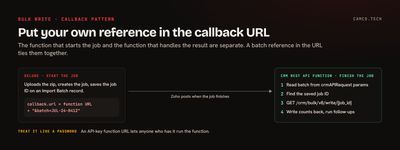
The callback URL can point at a Zoho CRM function exposed as a REST API. In Setup > Developer Hub > Functions, open the function, turn on REST API, and choose an authentication method; Zoho's REST API functions guide covers both options and recommends OAuth 2.0 for production. The function receives the request in crmAPIRequest.
The trick we use: put your own reference in the callback URL. Notice &batch= on the callback above (an API-key function URL already has a ?, so the reference joins with &). When the callback arrives, the function reads that reference from the query parameters, looks up which job and which source batch it belongs to, and finishes the work:
//
// REST API FUNCTION: CALLED BY ZOHO WHEN A BULK WRITE JOB FINISHES
//
paramsMp = crmAPIRequest.get("params");
batchRefStr = ifnull(paramsMp.get("batch"),"");
// THE JOB ID WAS SAVED ON THE BATCH RECORD WHEN THE JOB WAS CREATED
batchLst = zoho.crm.searchRecords("Import_Batches","(Name:equals:" + batchRefStr + ")");
if(batchLst.size() > 0)
{
	batchMp = batchLst.get(0);
	jobIdStr = batchMp.getJSON("Bulk_Job_Id");
	jobResp = invokeurl
	[
		url :"https://www.zohoapis.com/crm/bulk/v8/write/" + jobIdStr
		type :GET
		connection:"zcrm_bulk"
	];
	info jobResp;
	// WRITE THE OUTCOME BACK TO THE BATCH, THEN RUN THE STEPS WORKFLOWS WOULD HAVE
	updateMp = Map();
	updateMp.put("Bulk_Job_Status",jobResp.getJSON("status"));
	updateResp = zoho.crm.updateRecord("Import_Batches",batchMp.getJSON("id"),updateMp);
}
return {"status":"received"};
Zoho documents the job's status values as ADDED, IN PROGRESS, COMPLETED, and FAILED, and the job details include added_count, updated_count, skipped_count, and total_count for the file. Skipped rows explain themselves in the Error column of the result CSV, so a skipped count above zero is the cue to download it.
Treat the REST API endpoint like a password. Anyone with an API-key URL can run the function, so keep it out of shared docs and rotate it if it leaks.
Exporting with the Bulk Read API
Bulk Read is the same idea in reverse. POST a job to /crm/bulk/v8/read with the module, the fields you want, and optional criteria:
//
// EXPORT CONTACTED LEADS: LAST NAME, EMAIL, OWNER
//
queryMp = Map();
queryMp.put("module",{"api_name":"Leads"});
queryMp.put("fields",{"Last_Name","Email","Owner"});
queryMp.put("criteria",{"field":{"api_name":"Lead_Status"},"comparator":"equal","value":"Contacted"});
readMp = Map();
readMp.put("callback",{"url":callbackUrlStr,"method":"post"});
readMp.put("query",queryMp);
readResp = invokeurl
[
	url :"https://www.zohoapis.com/crm/bulk/v8/read"
	type :POST
	body:readMp.toString()
	headers:{"Content-Type":"application/json"}
	connection:"zcrm_bulk"
];
info readResp;
From Zoho's Bulk Read documentation, including the overview and create job pages:
| Limit | Value |
|---|---|
| Records per export job | 200,000 |
| More than that | A new job with the next page number, up to page 500 |
| Download available for | 1 day after the job completes |
| Download requests | 10 per minute |
| Formats | CSV, or ICS for Events |
| Not supported | Notes, attachments, emails, related and cross-module data |
The one-day download window matters. If the callback handler fails and nobody notices until Monday, the file is gone and the job has to run again.
The same pattern works outside CRM
Zoho Analytics has its own bulk export API with a callback URL, and we've used the identical shape in client projects: start an export job, point its callback at a CRM REST function, let that function download the rows, process them, and write the results back to Analytics as a JSON file import. When a service has no callback, we hand the job ID to Zoho Flow, which has a Delay step that waits a set number of minutes before calling the next function to collect the results.
What we usually set up
- A validation pass before upload: required fields present, emails well formed, IDs that exist. Failed jobs still cost 500 credits.
- An import batch record in CRM that stores the job ID, the source file, and the outcome, so every bulk job is traceable.
- A callback function that writes the counts back and alerts someone when
skipped_countis above zero. - Follow-up steps that replace the workflow rules bulk write skips, run once against the new records.
- Upserts matched on a stable key, usually email or an external ID, so a rerun doesn't create duplicates.
For smaller syncs, our invokeUrl guide covers calling APIs one request at a time, and our Deluge tips post shows how we chunk lists into batches with subList.
Planning a large data move
Start with the numbers: how many records, how often, and what has to happen to each one after it lands. That tells you whether you need the standard API, Bulk Write, or a mix. If you're facing a migration, a nightly sync with another system, or a one-time cleanup of a few hundred thousand records, that's the kind of work our API integration and Zoho migration projects cover. Or tell us what you need to move.