Zoho CRM custom functions are Deluge scripts that run inside the CRM when something happens: a workflow fires, a deal moves in Blueprint, someone clicks a button, or a schedule comes around. They're how a CRM goes from storing data to doing work, and most of the automation we build for clients lives in them.
This post covers where functions run and how long each one gets, then seven patterns we use on almost every Zoho CRM project. The code examples are adapted from client builds, with names and IDs replaced.
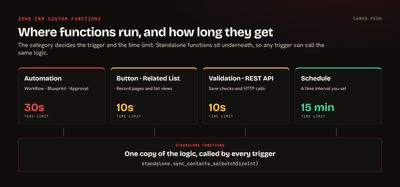
Where can a custom function run?
Every function has a category, and the category decides what triggers it and how long it gets. Zoho lists these in its functions overview and limits page:
| Category | Triggered by | Time limit | What it returns |
|---|---|---|---|
| Automation | Workflow rules, Blueprint, approvals | 30 seconds | Nothing the user sees |
| Button | A custom button on a record or list view | 10 seconds | A string shown in a dialog |
| Related List | Opening a record that shows the list | 10 seconds | XML rows the list displays |
| Validation Rule | Saving a record | 10 seconds | Whether the save goes ahead |
| Schedule | A time interval you set | 15 minutes | Nothing the user sees |
| Standalone | Another function, or an HTTP call as a REST API | 10 seconds as a REST API | Whatever the caller needs |
Functions live in Setup > Developer Hub > Functions, and Zoho supports Deluge, Python, Node.js, and Java. Everything below is Deluge.
1. Pass the record ID, then fetch the record
When you attach a function to a workflow or button, you map arguments to record fields. It's tempting to map ten fields. We map one: the record ID.
//
// ARGUMENT: dealIdInt (MAPPED TO Deals > Deal Id)
//
dealMp = zoho.crm.getRecordById("Deals",dealIdInt);
amountDec = ifnull(dealMp.getJSON("Amount"),0);
stageStr = ifnull(dealMp.getJSON("Stage"),"");
accountIdStr = "";
if(dealMp.getJSON("Account_Name") != null)
{
	accountIdStr = dealMp.getJSON("Account_Name").getJSON("id");
}
One argument means the mapping never needs editing when the function grows. The function always reads current values, including fields added after it was written. And it can be called with nothing but an ID from anywhere: a button, a workflow, a schedule, or another function.
2. Make buttons report what they did
Zoho displays a button function's return value in a dialog, per its button docs. Use it. A button that silently runs leaves people clicking it twice.
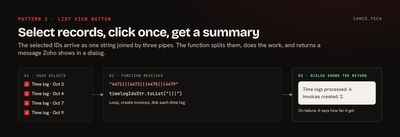
Buttons on a list view are even more useful, because users can select many records at once. In our builds the selected record IDs arrive as one string separated by |||, so the function splits it and loops:
//
// LIST VIEW BUTTON: GENERATE INVOICES FROM THE SELECTED TIME LOGS
//
try
{
	timelogIdLst = timelogIdsStr.toList("|||");
	invoiceCountInt = 0;
	updatedCountInt = 0;
	for each timelogIdStr in timelogIdLst
	{
		// ... BUILD AND CREATE THE INVOICE, THEN LINK THE TIME LOG TO IT
		createResp = zoho.crm.createRecord("Invoices",invoiceMp,{"trigger":{"workflow"}});
		if(createResp.containKey("id"))
		{
			invoiceCountInt = invoiceCountInt + 1;
		}
	}
	respStr = "Time logs processed: " + timelogIdLst.size() + ". Invoices created: " + invoiceCountInt + ".";
}
catch(e)
{
	respStr = "Something went wrong after " + invoiceCountInt + " invoices: " + e;
}
return respStr;
The return covers both outcomes. When it works, the user sees counts they can check. When it fails, they see how far it got, which tells you whether to rerun it or clean up first.
3. Keep triggers thin and put the logic in standalone functions
Zoho lets you chain functions by calling a standalone function from another one. We use that to keep every trigger to a few lines and put the real logic in one place.
Here's the entire scheduled function from a data sync we run nightly:
// SCHEDULE: RUNS NIGHTLY, SYNCS UP TO 500 RECORDS PER RUN
syncResp = standalone.fetch_and_sync_contacts_sa(500);
The standalone function takes a batch size, so the same code runs on a schedule with 500, from a button with 1 for a single record, and from the console with 5 while testing. When the logic changes, it changes once.
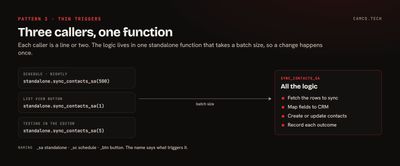
A naming habit helps here. We end each function's name with its category, such as _sa for standalone, _sc for schedule, and _btn for a button. A year later, anyone reading the function list can tell what triggers what.
4. Check what the call returned, not just that it ran
Deluge's CRM tasks return the API's response. When a create or update succeeds, the response includes the record's id and Modified_Time. When it doesn't, you get an error code such as INVALID_DATA. So check for success explicitly:
updateMp = Map();
updateMp.put("Invoice",invoiceIdInt);
updateResp = zoho.crm.updateRecord("Timelogs",timelogIdInt,updateMp);
if(updateResp.containKey("Modified_Time"))
{
	updatedCountInt = updatedCountInt + 1;
}
else
{
	// KEEP THE REASON SO THE SUMMARY CAN REPORT IT
	failedLst.add(timelogIdInt + ": " + updateResp);
}
Notice the {"trigger":{"workflow"}} option in the button example above. Zoho's createRecord reference says that without a trigger option, only approvals, Blueprint, and orchestration run, so workflow rules don't fire. Passing the trigger tells Zoho to run them, so a new invoice gets the same automation as one a person creates.
Our post on Deluge try/catch goes further into handling the failures.
5. Build in a test switch
Every function we write starts with the same few lines, so it can be run from the editor without a real trigger:
// DEV VARS: WHEN RUN FROM THE EDITOR, USE A KNOWN TEST RECORD
if(dealIdInt = null || dealIdInt = 0)
{
	dealIdInt = 1234567000000000001;
}
Click Save and Execute in the function editor and it runs against that record. Use info statements to print what you need, then check the result in the record. Once it's attached to a trigger, the real ID always arrives and the switch never fires.
After it's live, Setup > Developer Hub > Functions shows each function's logs and failures. Zoho's function analytics page explains the Logs, Failures, and Analytics tabs. Failed runs can be rerun from there.
6. Build a related list from any data
A related list function runs when someone opens a record and returns XML that Zoho shows as a list. The data can come from anywhere: other modules, another Zoho app, or an outside API.
Zoho's example shows a contact's other open deals on a deal. The shape is a <record> with numbered <row> elements, each holding <FL> fields:
//
// RELATED LIST: OTHER OPEN DEALS FOR THIS DEAL'S CONTACT
//
xmlStr = "<record>";
rowInt = 0;
for each dealMp in openDealsLst
{
	rowInt = rowInt + 1;
	xmlStr = xmlStr + "<row no='" + rowInt + "'>";
	xmlStr = xmlStr + "<FL val='Deal Name'>" + dealMp.getJSON("Deal_Name") + "</FL>";
	xmlStr = xmlStr + "<FL val='Stage'>" + dealMp.getJSON("Stage") + "</FL>";
	xmlStr = xmlStr + "<FL val='Amount'>" + ifnull(dealMp.getJSON("Amount"),0) + "</FL>";
	xmlStr = xmlStr + "</row>";
}
xmlStr = xmlStr + "</record>";
if(rowInt = 0)
{
	xmlStr = "<error><message>No other open deals</message></error>";
}
return xmlStr;
We use this to show Zoho Books invoices on an account, open support tickets on a contact, or usage pulled from a client's own platform, all without copying the data into CRM. It runs on every page load, so keep it fast: it has 10 seconds.
7. Know which limits shape the design
The time limits are the ones you feel first, but a few others matter at volume:
| Limit | Value |
|---|---|
| Lines of execution per run (loops count every pass) | 200,000 |
| invokeUrl calls per org per day | 5,000,000 |
| Emails from functions per org per day | 50,000 |
| Function credits, Enterprise and Zoho One | 20,000 + 500 per user license |
| Function credits, Ultimate and CRM Plus | 20,000 + 1,000 per user license |
Each Deluge run uses one credit, and credits refresh on a rolling 24 hours. Zoho's limits page lists Standard and Professional credits as being for extensions only, so custom functions in your own automation are an Enterprise-and-above build.
When a job needs more than 30 seconds, move it to a schedule and process it in batches. That's the reason the standalone function in pattern 3 takes a batch size.
What we usually change in inherited functions
- Replace long argument lists with a single record ID.
- Pull duplicated logic out of workflow functions into one standalone function.
- Add a return message to every button.
- Add a success check after every create and update.
- Add
{"trigger":{"workflow"}}where function-created records should run automation. - Move anything slow off the save and onto a schedule. Our post on why Zoho CRM feels slow shows how that plays out.
Getting more out of your functions
Custom functions are where a Zoho CRM account starts fitting the business instead of the other way around. If yours were written by someone who's moved on, or you have a process that needs one, that's everyday work on our Zoho CRM and process automation projects. For calls to outside systems, see our guide to invokeUrl.