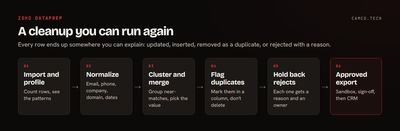
Zoho DataPrep cleans CRM data in a repeatable pipeline: normalize values, cluster near-matches, flag duplicates, set rejected rows aside, then export only approved records to Zoho CRM. Because it's a pipeline and not a one-time cleanup, the same rules apply to next month's list and every list after it.
This is for anyone facing a messy import, a migration, or a CRM with too many copies of the same company. It walks through the process we'd use on a Zoho CRM implementation, including the steps most guides skip, like what to do with rows that fail.
What changed in DataPrep 3.0?
Zoho announced DataPrep 3.0 on October 28, 2026. These are the changes that matter for this job:
- Agentic Ask Zia. Describe your goal and it plans the import, profiling, fixes, joins, and push. You can edit the plan first, it lists duplicates and messy addresses in a preview, and you choose which corrections to keep.
- Confirmation before the push. It suggests a destination such as the Leads module, and "Nothing is added until you confirm."
- Editable steps. Each step is saved as a rule you can open and change.
- Data Quality agent and anomaly detection. These suggest fixes and flag outliers while the data is still in DataPrep.
- Code Studio. Write Python transforms when the logic is specific to your business.
- dForge engine. Zoho reports 100x faster previews and 70% faster transforms during pipeline runs.
Ask Zia is a fast way to get a first draft of the pipeline. The decisions below still have to come from you, because only you know which rows count as the same customer.
Step 1: Import and profile the data
Bring in the source file or app. If you're checking against existing CRM records, import that module as a second source too. DataPrep's CRM connector handles Leads, Contacts, Accounts, Deals, custom modules, and more, and it can point to a Sandbox as well as Production.
Then look before you change anything. DataPrep's data distribution widgets show value statistics, text patterns, and outliers. Note how many rows you started with, because you'll want every row accounted for at the end.
Step 2: Normalize before you match
Most "fuzzy" duplicates are really formatting differences. Fix these first, and matching gets far more accurate:
| Field | Normalize to | Why it matters |
|---|---|---|
| Lowercase, trimmed | Pat@Acme.com and pat@acme.com are one person |
|
| Phone | Digits in one format | (727) 555-0100 and 727.555.0100 should match |
| Company | Consistent case, punctuation removed | ACME, Inc. and Acme Inc are close to identical |
| Website | Bare domain, no https://www. |
Often the best company match you've got |
| State and country | One standard form | FL, Fla., and Florida split your reports |
| Dates | ISO 8601 (yyyy-MM-dd) | The format the CRM API accepts |
Keep the original values in separate columns. When someone asks why a record looks different, you'll be able to show them.
Step 3: Use Cluster & Merge for near-matches
Cluster & Merge is DataPrep's fuzzy matching tool. It groups similar values in a column and lets you replace them with one standard value.
| Method | What it does | Good for |
|---|---|---|
| Metaphone (default) | By how words sound | Names spelled different ways |
| Fingerprint | Finds spelling errors and text mismatches | Company names typed slightly differently |
| N-gram | Compares runs of N continuous words | Multi-word names such as "Zoho Corporation" |
Clusters show up as cards. You tick the values that belong together and type the value to keep. Read them, because this is where a person's judgment counts. "Acme Corp" and "Acme Corporation" are probably one company. "First National Bank" in two different states probably isn't.
Note what this transform does and doesn't do: it standardizes values in a column. Combining the rows comes in the next step.
Step 4: Flag duplicates instead of deleting them
The Deduplicate transform works row-wise, keeping unique rows, or column-wise, on the columns you choose. So you can key on email, or on a combination such as company plus phone.
An enhancement Zoho added in 2025 flags duplicates in a separate column. Use that on any first run. You can then see what would be removed, sort it, and show it to whoever owns the data.
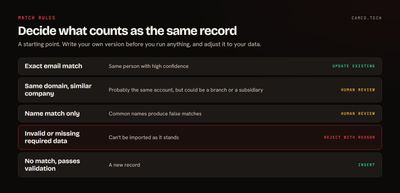
Decide what counts as a match before you start, and write it down. Here's the kind of rule set we'd start with. Adjust it to your data:
Step 5: Set rejected rows aside
This is the step most cleanups skip. Some rows won't pass, because of an invalid email, a missing required field, or a match nobody can call. Don't let those rows silently disappear, and don't push them into your CRM.
Build a clear path for them:
- Use "filter rows with invalid values," to find what fails.
- Add a reason column that says why each row was held back.
- Send those rows to a separate review destination. DataPrep pipelines can export to multiple destinations.
- Give someone ownership of that list, with a date to clear it.
At the end, your counts should add up: rows in equals rows updated, plus rows inserted, plus duplicates removed, plus rows rejected. If they don't, stop and find out why before you import.
Step 6: Make the CRM import an approved step
Now match your data against the CRM module. DataPrep's target matching flags unmatched columns, data type mismatches, format mismatches, and missing mandatory columns before anything is exported. Fix those first. Target columns use CRM API names, so expect to rename some.
Then choose the action and settings:
| Setting | Our default | Why |
|---|---|---|
| Environment | Sandbox first | See the result, and what workflows fire, before Production |
| Action | "Both add and update records" | Updates matches and inserts the rest |
| Match based on field | A field marked unique in CRM | Zoho asks for this, and it's what stops new duplicates |
| "Skip emptying a field when updating existing records" | On | Blank values in your file won't erase good CRM data |
| "Stop export if data has invalid values" | On for schedules | Keeps a bad file from getting through unattended |
Before Production, check what the import will trigger. Workflow rules can fire on imported records, and nobody wants 10,000 welcome emails. Have the data owner sign off on the counts and a sample of rows, take a CRM backup, then run it.
If something does go wrong, DataPrep has a "Rollback now" option in the Output tab for the most recent export. Check Zoho's rollback notes for your scenario ahead of time, and treat rollback as a safety net behind your sign-off.
What about duplicates already in the CRM?
The steps above keep new data clean. For what's already in there, Zoho CRM has its own Deduplicate tool, which checks a module on up to three fields you choose. It merges exact matches, and lets you resolve conflicts by hand. Related records such as emails, tasks, and notes move to the master record. There's also a Merge Records API for custom work, and for big volume updates, the Bulk Write API.
Merges are permanent, so use the same discipline: export first, review the plan, and start with one module. DataPrep is handy for preparing that plan, because you can import the module, flag the duplicates, and review them before anyone merges anything.
To prevent new ones, mark fields such as email as unique in CRM.
How do you make it repeatable?
Once the pipeline works on one file, save it and use it again. DataPrep can schedule runs as often as hourly, and versioning lets you go back to an earlier published version. Complete audit and access logs record who accessed what.
If an AI agent will be running this, DataPrep 3.0's MCP server lets one create and run pipelines. Keep the same stops in place, though: agents can build the pipeline, and a person should still approve the push. We explain why in our human-approval framework.
Clean data also pays off further along. It's what makes semantic definitions and AI answers in Analytics worth trusting.
What does this look like at scale?
Here's what a real cleanup taught us: a sales organization with about 895,000 contacts. At that size we built a custom matching pipeline, not a DataPrep one, but the lessons carry over to any tool.
- Phone was a trap. Exact phone matching suggested about 800,000 removable records. Almost all were company switchboards, so we stopped trusting any phone shared by more than 5 records.
- Name was a trap too. First and last name suggested about 165,000 removable records, mostly common names at different companies.
- Shared inboxes look like people. One vendor address sat on 21 records that were really 21 separate events. Merging them would have destroyed real data, so an email shared across different last names no longer counts as a match.
- Domains can mislead. In the accounts data, agencies sharing a government domain looked like duplicates. Ignoring the domain signal for those shared domains cut the top-confidence tier from 2,816 pairs to 908.
The real answer was 52,685 duplicate groups with 62,960 removable records, about 7% of the file. That's a long way from the 800,000 the first pass suggested. Every production merge needed an explicit go from a person, with a backup taken first, and weaker matches went to a review queue.
What we usually change
On a typical CRM cleanup, the same decisions come up:
- Add a unique field where there wasn't one, usually email on Contacts and a normalized domain on Accounts.
- Keep original values next to normalized ones.
- Make flagging the default, with removal as a later, signed-off step.
- Give every held-back row a reason and an owner.
- Check workflow rules and turn off what shouldn't fire during the load.
- Test in Sandbox with a small sample before running the whole file.
Where to start
Export one module and run the profile and the flag step without changing anything. You'll know in an hour how big the problem is. If it's bigger than you want to take on, or there's a migration behind it, our Zoho CRM team can run it with you. You can also send us what you're dealing with.